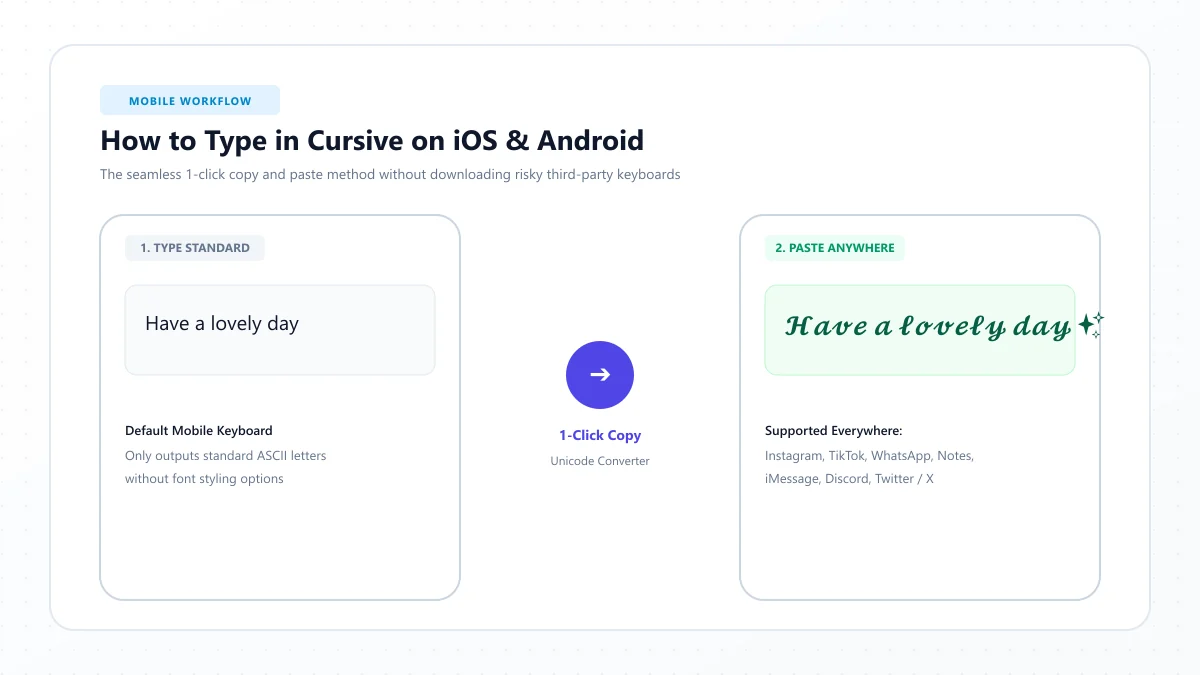
Have you ever seen someone send a message like 𝓗𝓮𝓵𝓵𝓸 or add a beautiful cursive name to their social media profile and wondered how they typed it on their phone?
Maybe you searched your keyboard settings, tried switching fonts, or looked for a cursive keyboard option, only to discover there wasn't one.
Here's the good news: you can type in cursive on iPhone and Android without downloading fonts or installing a new keyboard app.
The easiest method is to use an online cursive text generator. You enter ordinary text, choose a script style, copy the result, and paste it into a compatible app.
You can even save your favorite cursive phrases for repeated use through iPhone Text Replacement or Android clipboard features.
In this guide, you'll learn how to create cursive text on both devices, use it in messages and social media, troubleshoot display problems, and understand the difference between actual fonts and copy-and-paste cursive characters.
How to Type in Cursive on Your Phone: Quick Answer
To type cursive text on your phone without installing anything:
- Open Safari, Chrome, or your preferred mobile browser.
- Visit the free Cursive Text Generator.
- Type the word, name, or message you want to convert.
- Choose a cursive style you like.
- Tap the Copy button.
- Open an app that accepts text, then paste the copied result.
- Check that the characters display correctly before sharing or saving.
For example:
Normal text: Hello World
Cursive text: 𝓗𝓮𝓵𝓵𝓸 𝓦𝓸𝓻𝓵𝓭
Another cursive style: ℋℯ𝓁𝓁ℴ 𝒲ℴ𝓇𝓁𝒹
You don't need to change your phone's keyboard or install a font file.
The converted text uses special Unicode characters that resemble cursive handwriting.
Quick tip: Start with a short phrase. Decorative Unicode text is best suited to occasional styling rather than long messages containing important information.
Can You Type in Cursive on iPhone and Android Without an App?
Yes. Both iPhone and Android devices can copy and paste many Unicode cursive characters using their existing text controls.
However, the built-in keyboards do not generally offer a universal button that changes ordinary typing into decorative Unicode cursive.
Instead, a browser-based cursive generator creates the styled characters for you.
The process works similarly on both platforms, but clipboard controls and text shortcuts vary.
Feature | iPhone | Android |
|---|---|---|
Generate cursive text in a browser | Yes | Yes |
Copy and paste Unicode script | Yes, where supported | Yes, where supported |
Install a cursive font to use this method | Not required | Not required |
Save frequently used text | Text Replacement | Clipboard features on supported keyboards |
Native universal cursive typing mode | Not generally available | Not generally available |
Appearance guaranteed in every app | No | No |
A generator changes the characters you copy. It doesn't permanently change the font used by your entire phone.
How to Type in Cursive on iPhone Without Downloading Fonts
If you're using an iPhone, the simplest option is to generate cursive text directly in Safari and paste it wherever you need it.
Step 1: Open Safari
Unlock your iPhone and open Safari.
You can also use another browser installed on your phone.
Enter:
https://cursivetext-generator.com/
The generator works through a browser, so you don't need to install an additional keyboard.
Step 2: Enter your text
Find the text input field and type a word or phrase.
For example:
Happy Birthday
You can also type your name, a short greeting, or a decorative title.
Step 3: Choose a cursive style
Browse the available text styles.
You might prefer an elegant script for a name or a bolder style for a short heading.
Check that every letter in the result is recognizable.
Step 4: Copy the cursive text
Tap the Copy button for your preferred result.
This places the converted Unicode characters on your iPhone's clipboard.
Step 5: Paste into another app
Open the app where you want to use the text.
Tap the appropriate text field, then bring up the text-editing menu and select Paste.
For example, you might paste the phrase into Notes, a messaging conversation, or a compatible social media field.
Step 6: Check the result
Read the pasted text carefully.
Confirm that all letters appear correctly and that no unusual boxes or missing characters have replaced them.
If something looks wrong, try a simpler cursive style.
That's it. You've created cursive-looking text on your iPhone without installing a new font or keyboard.
How to Save Cursive Text Using iPhone Text Replacement
If you frequently type the same decorative phrase, copying it from a website every time may become inconvenient.
iPhone includes a built-in feature called Text Replacement that lets you save a phrase and associate it with a short shortcut.
For example, you could create a shortcut that inserts your cursive name.
Set up a cursive shortcut
- Copy your preferred cursive phrase from the generator.
- Open Settings on your iPhone.
- Go to General → Keyboard → Text Replacement.
- Tap the Add (+) button.
- Paste your cursive text into the Phrase field.
- Enter a shortcut such as cname into the Shortcut field.
- Save the new replacement.
Here's an example:
Phrase: 𝓢𝓸𝓹𝓱𝓲𝓪
Shortcut: cname
When you type the shortcut in a supported text field, iPhone can offer or apply the saved phrase replacement.
When is Text Replacement useful?
It can be convenient for repeated text such as:
- Your decorative display name
- A short signature-style greeting
- A favorite cursive phrase
- A regularly used heading
- A personal motto
Text Replacement doesn't transform every sentence into cursive automatically.
It inserts the exact phrase you've saved, and behavior may vary between apps and keyboard contexts.
For long or changing messages, an online generator is still more practical.
How to Type in Cursive on Android Without Installing Fonts
Android users can follow nearly the same process using Chrome or another mobile browser.
You don't need to download a keyboard app or grant a third-party keyboard access to your typing.
Step 1: Open your mobile browser
Launch Chrome, Samsung Internet, Firefox, or your preferred browser.
Visit the Cursive Text Generator.
Step 2: Type the words you want to style
Enter your normal text in the generator.
For example:
hello world
Step 3: Choose your favorite style
Select a script variation that looks readable on your screen.
Different styles may include light script, bold script, or other decorative letterforms.
Step 4: Copy the converted text
Tap Copy next to the style you want to use.
The styled Unicode text is now stored in your clipboard.
Step 5: Open the destination app
Switch to your preferred messaging, notes, or social media app.
Tap the text field where you want to insert the phrase.
Step 6: Paste the cursive text
Long-press the input area and choose Paste, or use the clipboard control available on your keyboard.
Step 7: Review the characters
Make sure the phrase displays correctly.
If some characters look different or the application rejects the entry, try another style or use ordinary text.
You can repeat this method whenever you want a new cursive word or phrase.
How to Type in Cursive on Samsung Galaxy Phones
Samsung Galaxy phones run Android, but their interfaces and keyboard features can differ from those on Pixel and other Android devices.
The browser-based method is still straightforward.
- Open Samsung Internet or Chrome.
- Visit the Cursive Text Generator.
- Enter your text.
- Copy a cursive version.
- Open the app where you want to use it.
- Long-press a text field and select Paste, or use your keyboard's clipboard function.
If you're using Samsung Keyboard, clipboard controls may be available through its toolbar or additional keyboard options.
The precise layout depends on your phone model, keyboard settings, and software version.
Does changing the Samsung phone font create cursive messages?
Not necessarily.
Samsung phones may offer system font customization, depending on the device and software.
Changing a display font is different from inserting decorative Unicode script.
A system font setting affects how supported text appears on your own device. It doesn't generally mean that your messages will be sent in that font to other people.
If you want copyable cursive characters that can travel with a message, use the Unicode text method instead.
How to Save Cursive Text on Android for Repeated Use
Some Android keyboards provide clipboard tools that make it easier to reuse copied phrases.
Google's Gboard, for example, supports pinning clipboard entries.
This is useful if you regularly paste the same cursive name or greeting.
Save a cursive phrase with Gboard
- Generate and copy the cursive phrase.
- Open a text field in an app that uses Gboard.
- Open the keyboard's Clipboard feature.
- Find the copied phrase.
- Touch and hold the entry.
- Select Pin, if available.
Your pinned phrase can then remain accessible from Gboard's clipboard.
For example, you could pin:
𝓗𝓪𝓹𝓹𝔂 𝓓𝓪𝔂
Or:
𝓢𝓽𝓪𝔂 𝓚𝓲𝓷𝓭
What about other Android keyboards?
Samsung Keyboard and other keyboards may provide different clipboard management options.
Some support pinned items or saved phrases, while others use different controls.
If your keyboard doesn't provide this feature, you can save a favorite phrase in a notes app and copy it when needed.
Cursive Text Examples You Can Copy on Your Phone
Want to try cursive writing immediately?
Here are some short examples of Unicode script characters.
Normal text | Cursive text |
|---|---|
Hello | 𝓗𝓮𝓵𝓵𝓸 |
Love | 𝓛𝓸𝓿𝓮 |
Dream | 𝓓𝓻𝓮𝓪𝓶 |
Smile | 𝓢𝓶𝓲𝓵𝓮 |
Beautiful | 𝓑𝓮𝓪𝓾𝓽𝓲𝓯𝓾𝓵 |
Forever | 𝓕𝓸𝓻𝓮𝓿𝓮𝓻 |
Happy | 𝓗𝓪𝓹𝓹𝔂 |
Sunshine | 𝓢𝓾𝓷𝓼𝓱𝓲𝓷𝓮 |
Good Vibes | 𝓖𝓸𝓸𝓭 𝓥𝓲𝓫𝓮𝓼 |
My Story | 𝓜𝔂 𝓢𝓽𝓸𝓻𝔂 |
To create custom versions of your own words, type them into the generator and choose your favorite result.
Beautiful cursive messages
You can also experiment with short messages.
Normal: Have a wonderful day!
Cursive: 𝓗𝓪𝓿𝓮 𝓪 𝔀𝓸𝓷𝓭𝓮𝓻𝓯𝓾𝓵 𝓭𝓪𝔂!
Normal: Follow your dreams
Cursive: 𝓕𝓸𝓵𝓵𝓸𝔀 𝔂𝓸𝓾𝓻 𝓭𝓻𝓮𝓪𝓶𝓼
Normal: You are amazing
Cursive: 𝓨𝓸𝓾 𝓪𝓻𝓮 𝓪𝓶𝓪𝔃𝓲𝓷𝓰
Use these for decorative purposes when the receiving app supports the characters.
For important messages, ordinary text is easier to read and generally more accessible.
Where Can You Use Cursive Text on iPhone and Android?
You can try copying Unicode cursive characters into many apps that accept text.
However, availability and display behavior depend on the destination field, the app, and the device.
App or use case | Typical use | Important limitation |
|---|---|---|
Bio, display name, short captions | Usernames have restricted characters | |
TikTok | Bio or decorative display text | Field restrictions may apply |
Occasional decorative messages | Recipient devices may render text differently | |
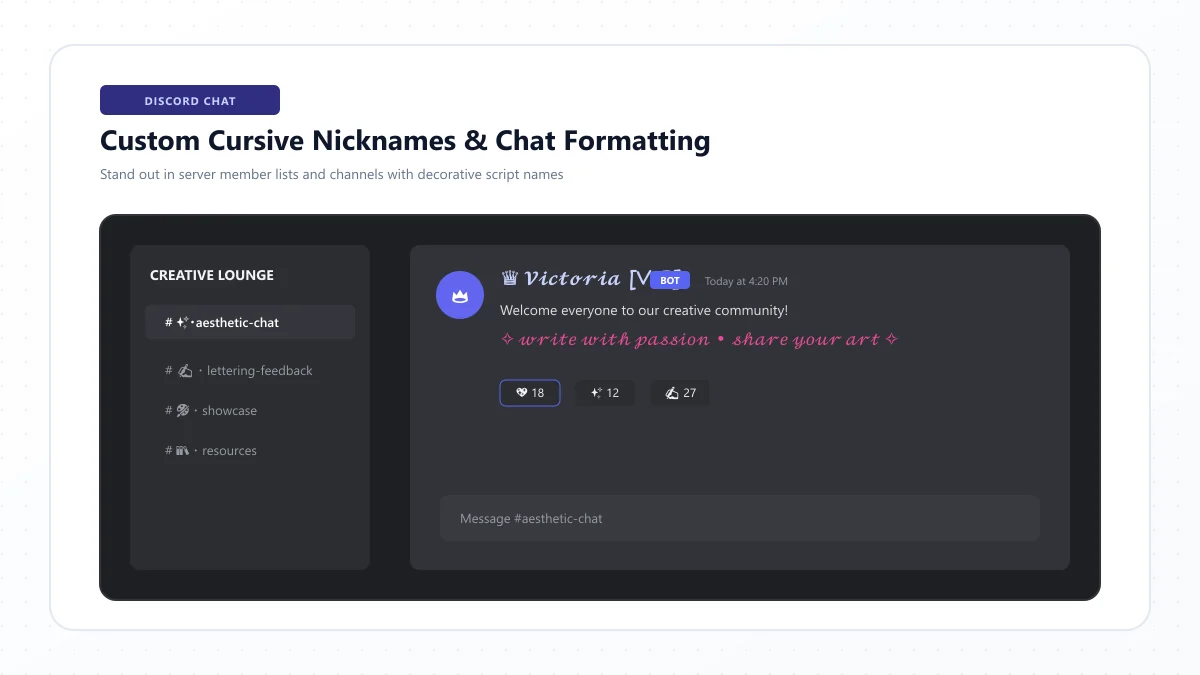
Discord | Display names or messages | Server and field rules may restrict characters |
Notes apps | Personal phrases and headings | Real text formatting may be preferable |
Messaging apps | Short greetings | Accessibility and compatibility may vary |
Decorative headings | Avoid for essential professional information |
Remember: Being able to paste a character doesn't guarantee that every app will accept, preserve, or display it in the same way.
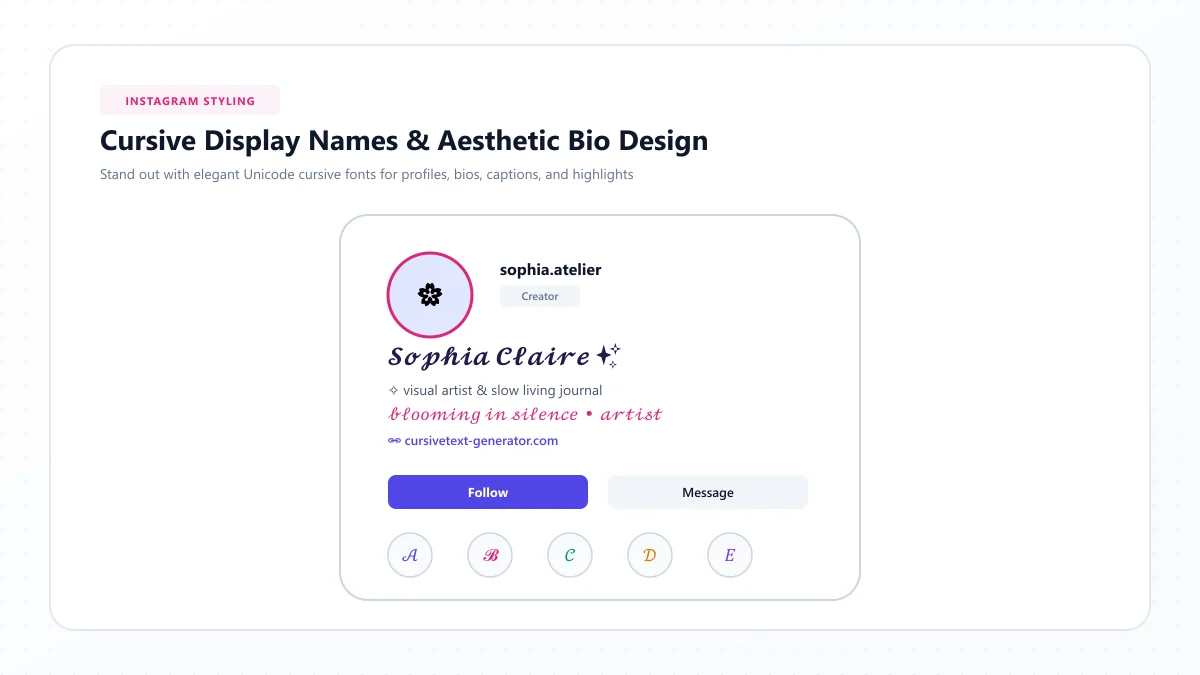
For Instagram-specific examples, explore our Instagram Cursive Fonts Generator.
What's the Difference Between Cursive Text and a Real Cursive Font?
This is one of the most common sources of confusion.
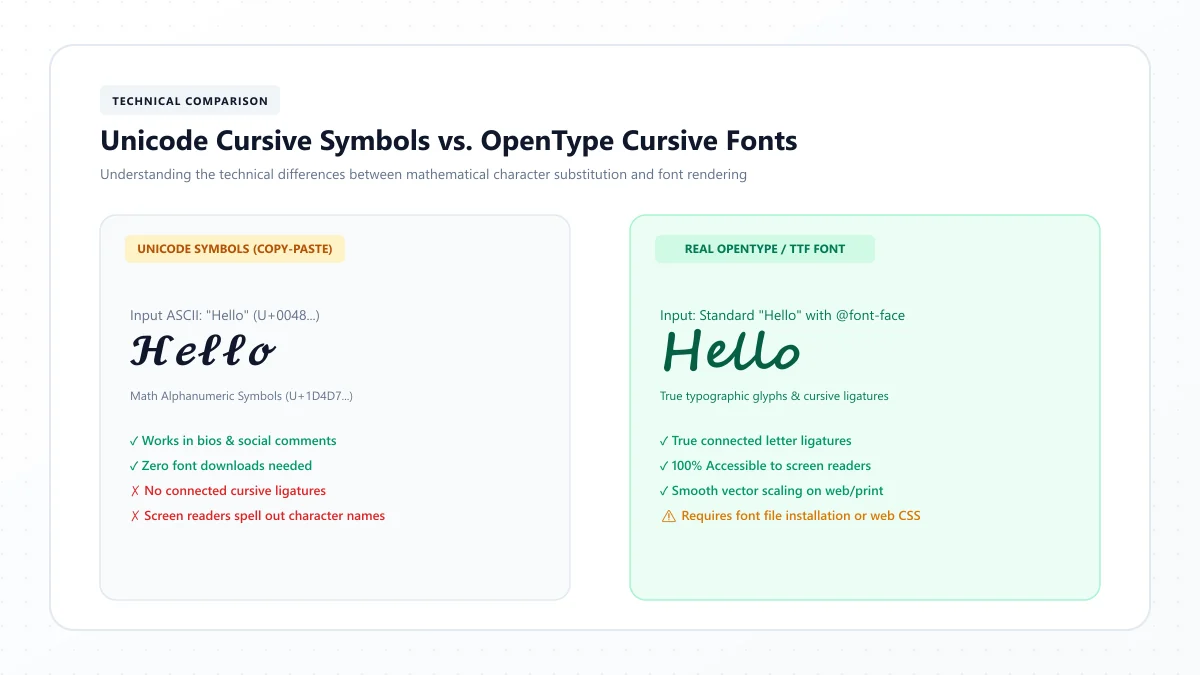
When you use a cursive text generator, you're usually not changing the actual typeface installed on your phone.
Instead, the generator substitutes normal Latin letters with different Unicode characters that resemble script handwriting.
For example:
Normal letters: Hello
Unicode script letters: 𝓗𝓮𝓵𝓵𝓸
The second example is made from distinct characters.
When you copy and paste them, those characters travel with the text.
How is that different from a real font?
A real font is a set of glyph designs used to display text.
An application with font-formatting controls can display ordinary letters in a chosen cursive typeface while preserving the underlying words.
Unicode cursive generators generally replace the characters themselves.
Feature | Unicode cursive text | Real cursive font |
|---|---|---|
Requires a font file download | No | Sometimes |
Can be pasted into plain-text fields | Often, if supported | Font styling usually doesn't transfer |
Preserves ordinary Latin letters underneath | No, substitutes characters | Yes |
Useful for decorative bios and names | Yes, with limitations | Only where font selection is supported |
Accessibility | May cause difficulties | Often preferable when implemented correctly |
Appearance across devices | Depends on glyph support | Depends on available or embedded fonts |
If you're creating a professional document, invitation, or graphic, using a proper script font within a design application may provide better control.
For occasional decorative text in a mobile profile or message, Unicode copy-and-paste can be convenient.
Why Doesn't My Cursive Text Work on My Phone?
Sometimes the converted phrase looks perfect on the generator but changes after pasting.
Here are the most common problems.
1. Cursive letters appear as boxes
If the text appears as empty squares or missing symbols, the destination environment may lack suitable character support.
Try this: Switch to a simpler style and check the result again.
2. Only some letters look cursive
Certain script characters may be rendered using different fallback fonts.
The result can appear inconsistent.
Try this: Choose a different script variation, especially for longer names or unusual characters.
3. The app refuses to save the text
Some apps restrict which characters can be used in usernames, IDs, or other fields.
Try this: Use the same text in a compatible field or return to ordinary letters.
4. Copy and paste doesn't work
The text may not have been copied successfully, or the destination field may not support the paste operation.
Try this: Copy the phrase again, paste it into a basic notes field to verify the clipboard, and then try the original app.
5. Accented letters don't convert properly
Not every decorative Unicode alphabet has a direct equivalent for accented characters.
Try this: Keep unsupported letters in their normal form or use a real script font inside an application that supports your language.
6. The text looks too small or decorative
Some Unicode cursive styles are harder to read at small sizes.
Try this: Choose a simpler style and shorten the phrase.
7. The characters change after saving
An application may normalize, filter, or otherwise process entered text.
Try this: Reopen the saved profile or message and inspect the actual result. Don't rely only on the editing preview.
Are Cursive Keyboard Apps Necessary?
No. If your goal is simply to copy a cursive phrase into a compatible app, a browser-based generator is enough.
Third-party keyboard applications can offer additional features, but they aren't required for this method.
Some keyboards may also ask for permissions or additional access, depending on the operating system and app.
For occasional decorative text, using a browser-based tool avoids the need to install an unfamiliar keyboard.
However, a browser generator cannot permanently replace your phone's built-in keyboard with a universal cursive typing mode.
If you use the same phrase repeatedly, save it through iPhone Text Replacement or a supported Android clipboard feature.
Is Copy-and-Paste Cursive Text Safe?
Creating decorative text in a browser and copying it to your clipboard doesn't inherently require changing your phone's system settings or sharing an account password.
A legitimate text generator should not need your Instagram, TikTok, WhatsApp, or other account credentials just to produce script characters.
For privacy, avoid entering passwords, confidential messages, or sensitive personal information into an unfamiliar website.
You should also distinguish security from compatibility.
A decorative Unicode character isn't automatically dangerous, but it may not display or behave as expected in every app.
For important communications, use ordinary text unless there's a clear reason to use decorative characters.
Are Unicode Cursive Fonts Accessible?
Not always.
Decorative script characters can create problems for people using screen readers and other assistive technologies.
Some accessibility software may interpret the underlying mathematical character names rather than treating the styled text as an ordinary word.
This can make even a short phrase difficult to understand.
Unicode script characters were originally encoded for specialized mathematical notation, not as a universal replacement for everyday styled text.
How to use cursive more responsibly
Keep essential information in standard letters.
Avoid converting long paragraphs, instructions, addresses, or important contact details.
Use decorative cursive selectively for short, nonessential phrases.
When an application offers real italic or script font formatting, that may be a more accessible option because the underlying text remains ordinary letters.
Best Tips for Typing Cursive on Mobile
Here are some practical ways to get better results.
1. Use shorter phrases. Short decorative headings are easier to inspect for missing or unusual characters.
2. Choose readable styles. The most elaborate script isn't always the most useful.
3. Preview before sharing. Check the final text in the destination app.
4. Keep important details in normal text. This helps readability and accessibility.
5. Use Text Replacement on iPhone. Save phrases you type frequently.
6. Pin useful clipboard entries on Android. If your keyboard supports it, keep commonly used phrases available.
7. Avoid changing your username unnecessarily. Many platforms restrict characters in account handles.
8. Test another style when characters break. Not all Unicode script variations render identically.
9. Don't confuse fonts with Unicode characters. They work differently.
10. Use the right tool for the job. Choose a text generator for decorative messages and a genuine typeface for formatted documents or graphic design.
Frequently Asked Questions
How do I type in cursive on my iPhone?
Open a cursive text generator in Safari, enter your text, choose a script style, and copy it. Then paste the Unicode characters into a compatible app. No separate font download is required.
How do I type cursive letters on Android?
Use Chrome or another mobile browser to open a cursive text generator. Convert your phrase, tap Copy, and paste it into the app where you want to use it.
Does iPhone have a built-in cursive keyboard?
iPhone does not provide a universal built-in keyboard mode that automatically converts everyday typing into Unicode cursive. You can use a generator and optionally save repeated phrases with Text Replacement.
Can I type cursive on Samsung without an app?
Yes. Use Samsung Internet or Chrome to access a web-based cursive generator, copy a style, and paste it into a supported text field.
Do I need to download cursive fonts to use them in messages?
No. Unicode cursive text can be created and copied without installing font files. However, this is different from applying a real cursive font to ordinary text.
How can I make cursive text appear automatically on iPhone?
You can save specific cursive phrases using Settings → General → Keyboard → Text Replacement. This inserts saved phrases when you use their shortcuts; it doesn't convert arbitrary words automatically.
Can I save cursive text on Android?
Yes. Gboard supports pinning copied text in its clipboard. Other Android keyboards may provide similar features. Exact controls vary.
Will cursive text work in WhatsApp?
You can paste Unicode script characters into many WhatsApp messages, but character rendering depends on the receiving device and software. WhatsApp's native text formatting is a separate feature.
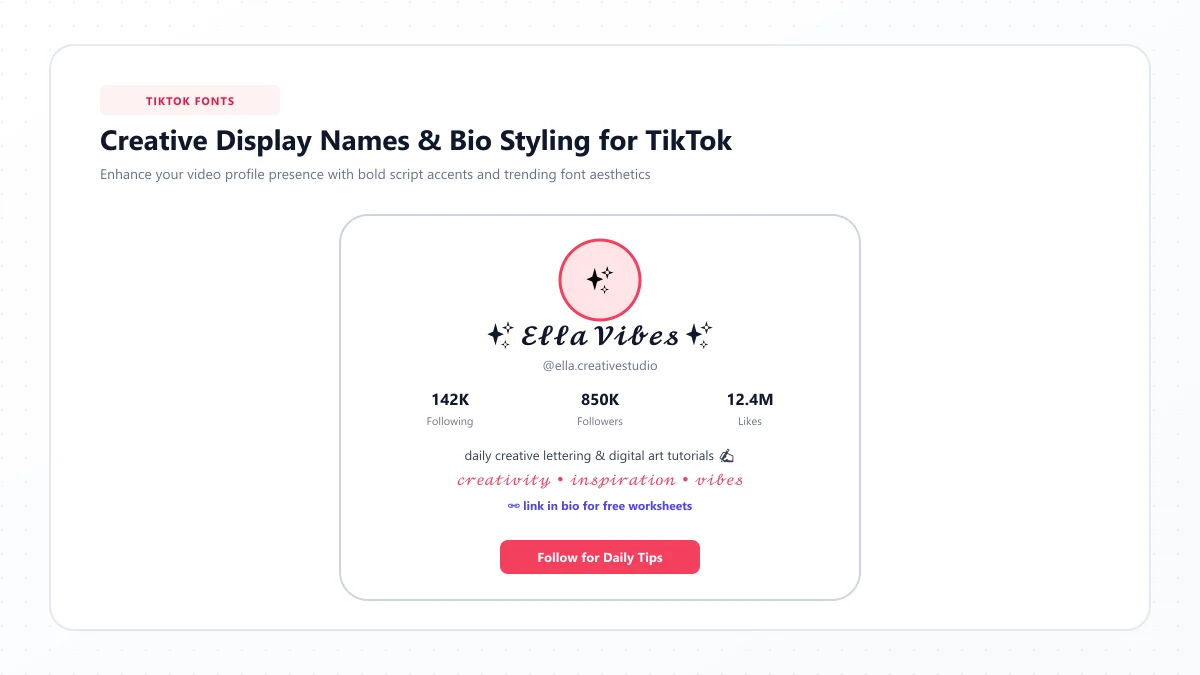
Can I type cursive in Instagram and TikTok bios?
You can try pasting supported Unicode cursive characters into compatible profile fields. Some fields, including account usernames, have stricter character rules.
Why do my cursive letters turn into squares?
The app or device may not have the glyph support needed to render particular Unicode characters. Try a simpler style or use ordinary text.
Is a cursive text generator the same as installing a cursive font?
No. A generator typically substitutes special characters. Installing a font provides glyph designs that compatible applications can use to display ordinary text.
Are cursive fonts free on iPhone and Android?
Many web-based cursive text generators are free to use. You can create decorative phrases without purchasing a font or installing a separate keyboard.
Is Unicode cursive suitable for long messages?
Usually not. Decorative mathematical characters may create readability, accessibility, search, or compatibility problems. Standard text is generally better for important or lengthy communication.
Final Thoughts: Create Cursive Text Without Installing Anything
You don't need a special keyboard or downloadable font to create stylish cursive text on your iPhone or Android phone.
A free browser-based generator lets you type a name, phrase, or greeting, convert it into decorative Unicode script, and copy the result into a compatible app.
If you regularly reuse the same phrase, iPhone Text Replacement or an Android keyboard clipboard can make the process more convenient.
Just remember that Unicode cursive isn't the same as installing a traditional font, and not every app displays decorative characters identically.
For the best experience, choose readable styles, test the final result, and reserve decorative text for short phrases rather than essential information.
Ready to try it? Open our free Cursive Text Generator on your iPhone or Android, enter your text, and copy your favorite cursive style in a few taps.
References and further reading
These links are provided for further reading. External websites and information may change.