Have you ever opened a Google Docs document and wished the text looked a little more personal? Maybe you are designing a wedding invitation, preparing a certificate, creating a decorative title, or writing a heartfelt letter. A beautiful handwritten font can give an ordinary document a completely different feel.
The good news is that you do not need expensive design software to create that look.
Google Docs includes access to several elegant script and handwriting fonts. You can find them through the font menu, apply them to your text, and adjust their size and color to match your design.
In this guide, you will learn how to use cursive fonts in Google Docs, discover beautiful font options, and understand how to make your writing look polished without sacrificing readability.
Can You Use Cursive Fonts in Google Docs?
Yes. Google Docs supports a variety of cursive, script, and handwriting-style fonts.
Some look like traditional joined handwriting, while others resemble modern brush lettering or decorative calligraphy.
You can use these fonts for:
- Wedding invitations and greeting cards
- Certificates and award titles
- Personal letters and notes
- Creative school projects
- Journal covers and printable planners
- Decorative headings and short quotations
- Names and signature-style text
The most convenient approach is to choose a font from Google Docs itself. You can also use a cursive text generator to create Unicode cursive characters that can be copied into your document.
These two methods work differently, so choosing the right one depends on what you want to create.
How to Add Cursive Fonts in Google Docs: Step-by-Step
You can add handwriting-style fonts directly from the Google Docs toolbar. There is no need to download software or install a browser extension.
The following steps work in the desktop version of Google Docs.
Step 1: Open Your Google Docs Document
Visit Google Docs and open an existing document or create a blank one.
If you are starting from scratch, type a short sentence to experiment with different styles.
For example:
Every beautiful story begins with a single word.
Using a sample sentence is helpful because you can see how a font handles uppercase letters, lowercase letters, and spacing before applying it to your final design.
Step 2: Select the Text You Want to Change
Highlight the sentence, heading, or paragraph you want to display in cursive.
You can select a single word, several lines, or the entire document.
For most projects, applying a decorative font to a heading or short phrase produces a cleaner result than changing every paragraph.
Step 3: Open the Font Dropdown Menu
Look at the toolbar near the top of your document.
You will see a font selection box, often displaying Arial or another font currently in use.
Click the font name to open the dropdown menu.
If your preferred handwriting font is already listed, you can select it immediately.
Otherwise, choose More fonts to explore additional options.
Step 4: Search for a Cursive Font
In the font selection window, use the search field to find a specific typeface.
For example, search for:
- Dancing Script
- Pacifico
- Great Vibes
- Sacramento
- Allura
You can also explore fonts by category, depending on the options available in your interface.
Google Docs provides sorting and searching features to make it easier to find additional fonts.
Step 5: Add Your Favorite Font
Select the font you want to use and click OK.
The selected typeface will be added to your available font list.
Return to the document, select your text if necessary, and choose the font from the toolbar.
Your writing should now appear in the selected style.
If you are unsure which font works best, experiment with two or three options before making your final choice.
Step 6: Adjust the Font Size and Appearance
A beautiful font can become difficult to read when it is too small.
Try increasing the font size for titles, names, and decorative phrases.
As a practical starting point:
- 14–16 pt: Short notes and moderately decorative text
- 18–24 pt: Subheadings and quotations
- 28–36 pt: Document titles and prominent headings
- 40 pt or larger: Posters, invitations, and display text
These are design suggestions rather than fixed rules. Fonts with delicate strokes may need larger sizes.
You can also adjust the text color, alignment, and spacing to create a more balanced appearance.
Once everything looks right, your cursive text is ready.
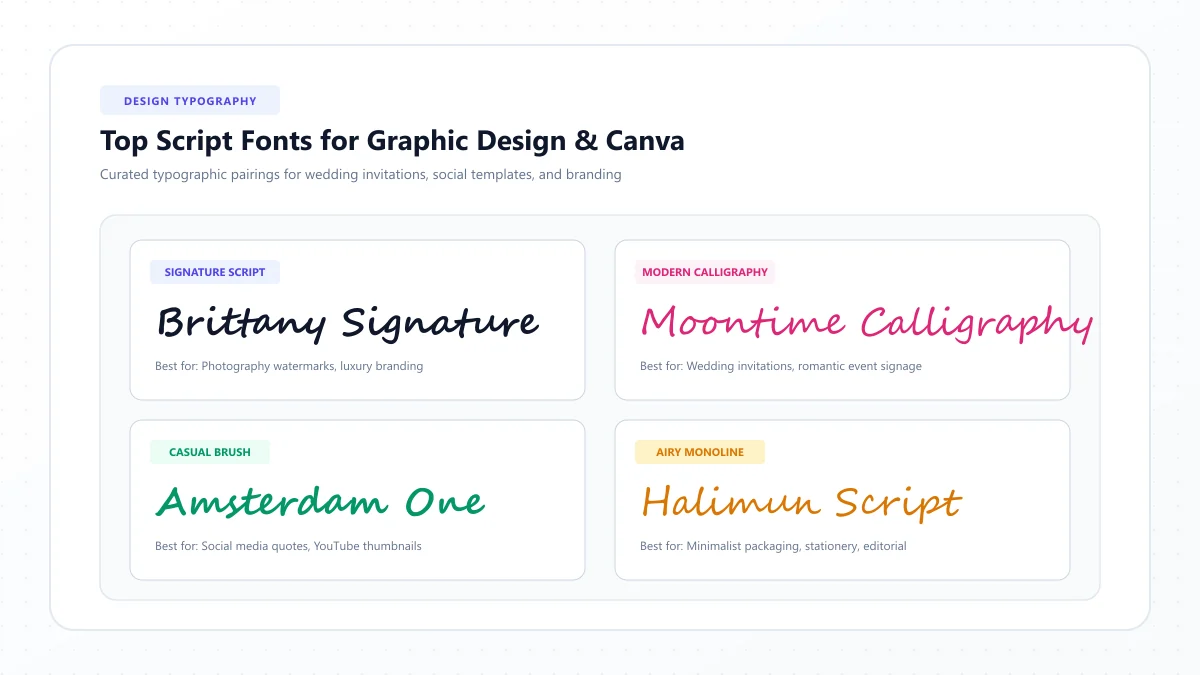
10 Beautiful Cursive and Handwriting Fonts to Try in Google Docs
Not every handwriting font creates the same impression.
Some are playful and casual. Others are formal and elegant. A few resemble everyday handwriting rather than traditional calligraphy.
Here are ten excellent options to look for in the Google Docs font menu.
Font availability can vary, so search the More fonts menu to confirm which options are offered in your document.
1. Dancing Script
Best for: Friendly headings, personal notes, and creative projects.
Dancing Script has flowing letterforms with a lively, informal personality.
It feels expressive without becoming overly ornamental.
If you are creating a journal cover, a handwritten-style quote, or a casual invitation, this is a good place to start.
2. Pacifico
Best for: Bold headings, greeting cards, and cheerful designs.
Pacifico has rounded letters inspired by brush lettering.
Its strokes create a warm, confident appearance that works especially well in larger headings.
Because the font has a strong visual presence, pair it with a simple body font to keep the page balanced.
3. Great Vibes
Best for: Wedding invitations, certificates, and formal titles.
Great Vibes is an elegant script with graceful curves and ornamental capital letters.
It can make a simple name or heading look sophisticated.
However, its decorative details become harder to appreciate at small sizes.
Use it for short phrases rather than long paragraphs.
4. Allura
Best for: Personal letters, signatures, and minimalist invitations.
Allura combines a light handwritten appearance with smooth, flowing strokes.
It is an attractive choice when you want something refined but not excessively decorative.
Try it for a person's name, a closing phrase, or an invitation heading.
5. Sacramento
Best for: Casual lettering, journal titles, and personal stationery.
Sacramento has a simple monoline handwriting style.
Unlike heavier brush fonts, its strokes are relatively light and relaxed.
It works nicely for projects where you want a handwritten feeling without a highly formal appearance.
6. Satisfy
Best for: Inspirational quotes, posters, and creative headlines.
Satisfy has a lively brush-script appearance.
Its letterforms feel spontaneous, making it suitable for short, expressive messages.
Consider using it for a quote on a printable poster or a decorative section title.
7. Parisienne
Best for: Elegant invitations, romantic designs, and menu headings.
Parisienne offers an airy, graceful style inspired by flowing script handwriting.
Its delicate appearance makes it particularly effective for names and special occasions.
Try pairing it with a clean serif typeface for supporting information.
8. Caveat
Best for: Study notes, annotations, and informal documents.
Caveat is a handwriting-style font rather than a traditional connected cursive script.
It resembles natural, quickly written lettering.
If formal calligraphy feels too elaborate for your project, Caveat offers a more relaxed alternative.
9. Tangerine
Best for: Decorative titles, names, and formal stationery.
Tangerine features thin strokes and expressive letter shapes.
It can look beautiful at large sizes, particularly when there is plenty of white space around the text.
Avoid using it for dense paragraphs because its delicate lettering may become difficult to read.
10. Lobster
Best for: Eye-catching titles, banners, and playful creative designs.
Lobster has a bold, connected script style with strong visual character.
It works well when you want a short heading to stand out immediately.
Use it sparingly so the design does not feel crowded.
Which Cursive Font Should You Choose?
Here is a quick comparison to help you decide.
| Font | Style | Recommended Use |
|---|---|---|
| Dancing Script | Friendly cursive | Notes and headings |
| Pacifico | Rounded brush script | Greeting cards |
| Great Vibes | Formal calligraphy | Wedding invitations |
| Allura | Elegant handwritten script | Names and sign-offs |
| Sacramento | Light monoline script | Personal stationery |
| Satisfy | Expressive brush lettering | Quotes and posters |
| Parisienne | Delicate flowing script | Invitations |
| Caveat | Casual handwriting | Notes and annotations |
| Tangerine | Ornamental calligraphy | Decorative titles |
| Lobster | Bold connected script | Banners and headlines |
For a professional document, try using one decorative font for the main heading and a straightforward font for the remaining text.
This simple combination often looks more polished than using several fancy fonts together.
How to Copy and Paste Cursive Text into Google Docs
Sometimes you may want cursive-looking text without changing the font settings.
For example, you might be preparing a short phrase that you also plan to use in a social media bio or another application.
In that case, a Unicode-based text generator offers an alternative.
Step 1: Open a Cursive Text Generator
Visit our free Cursive Text Generator.
The tool transforms ordinary characters into decorative Unicode text styles that you can copy.
Step 2: Enter Your Text
Type the word, name, or phrase you want to customize.
For example:
Make Every Moment Count
Explore the available styles and choose one that suits your project.
Step 3: Copy Your Preferred Style
Use the copy option for the style you like.
Unlike a conventional typeface, Unicode styled text uses special characters to create its appearance.
Step 4: Paste It into Google Docs
Return to your document, position the cursor, and paste the copied text.
You can now include the styled characters in a heading, quotation, or short decorative section.
Keep in mind that not every Unicode character displays consistently across devices or applications.
Some may appear as empty boxes or lose their intended appearance.
For important documents, test the text before sharing or printing it.
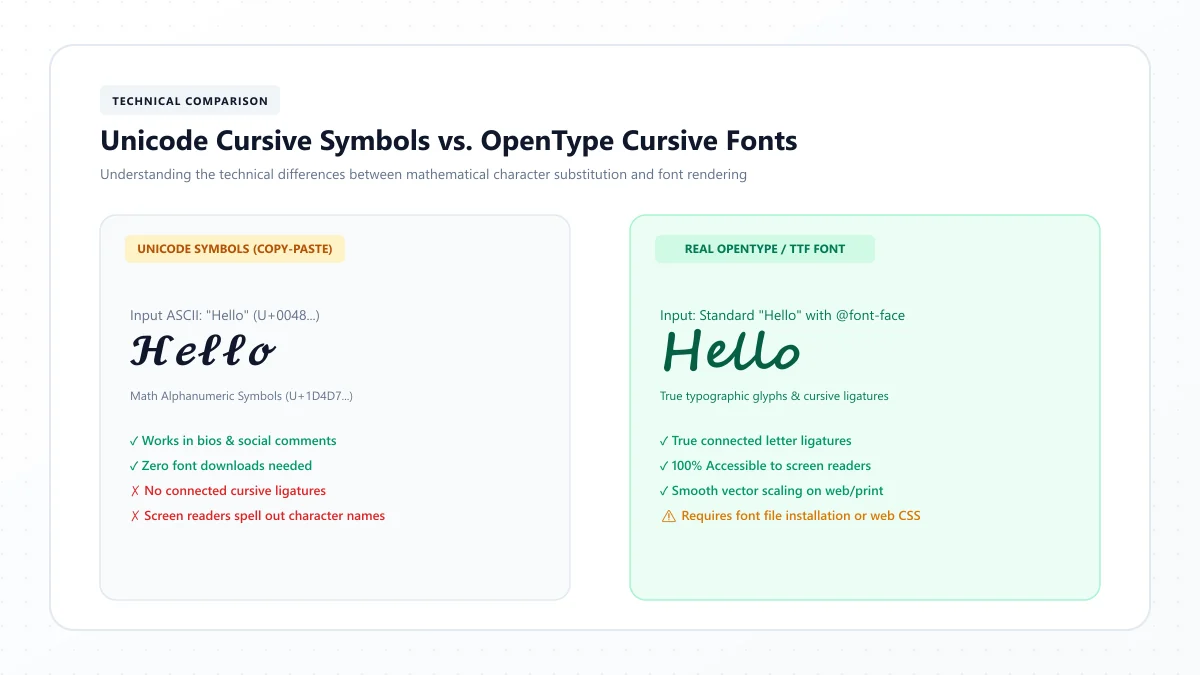
Google Docs Cursive Fonts vs. Unicode Cursive Text
Although both methods can create stylish lettering, they are not interchangeable.
Traditional Cursive Fonts
A cursive font changes how ordinary text is displayed.
For example, the word "Welcome" remains the same sequence of letters even when shown using Great Vibes or Dancing Script.
This makes conventional fonts generally more suitable for documents that need editing, searching, reading, and printing.
Unicode Cursive Text
Unicode cursive uses alternative characters that resemble handwritten lettering.
For example:
Normal text: Hello
Unicode styled text: 𝓗𝓮𝓵𝓵𝓸
The decorative appearance comes from the characters themselves rather than solely from a Google Docs font selection.
This can be convenient when moving stylized text between applications, but it introduces important limitations.
Some characters may not be supported by certain fonts or devices. Screen readers may also interpret mathematical styled characters differently from ordinary alphabetic text.
For that reason, conventional fonts are usually the better choice for full documents, while Unicode cursive is better reserved for short decorative phrases.
You can learn more in our guide to Unicode cursive vs. real cursive fonts.
Can You Upload Custom Cursive Fonts to Google Docs?
This is one of the most common points of confusion.
You may find a beautiful script font on a design website, download its font file, and expect it to appear automatically in Google Docs.
Unfortunately, that is not how the platform currently works.
As of 2026, Google Docs does not provide a native option to upload arbitrary custom font files such as .ttf or .otf for use as document fonts.
Installing a font on your computer also does not guarantee that it will become available in Google Docs.
The most reliable solution is to search the available font library for a similar style.
If your project absolutely requires a particular downloadable font, consider preparing the design in software that supports custom font installation.
You can then export the finished design in a suitable format.
For current instructions, refer to Google's official font formatting help.
How to Make Cursive Text Look Professional in Google Docs
Choosing a beautiful typeface is only the beginning.
The way you use it has an equally important effect on the final appearance.
Use Decorative Fonts Selectively
Cursive works especially well when you want to draw attention to a name, heading, quotation, or invitation.
However, reading several pages of elaborate script can be tiring.
Use decorative fonts where they contribute to the design and keep longer sections in a more readable typeface.
Choose a Suitable Font Size
Thin, elaborate strokes can disappear when reduced too much.
Preview the text at the size it will actually be viewed or printed.
If you need to zoom in just to distinguish individual letters, consider increasing the size or choosing a simpler font.
Keep the Color Contrast Strong
Light gray lettering on a white background may look delicate on screen but become nearly invisible when printed.
Dark text on a light background is usually a safer choice for readable documents.
For invitations and creative layouts, use color thoughtfully without sacrificing legibility.
Avoid Mixing Too Many Fonts
A document does not need five different typefaces to look creative.
In most situations, one cursive font paired with one readable body font is enough.
For example:
Main title: Great Vibes
Body text: Arial
This creates contrast while keeping the design organized.
Test Your Document Before Sharing
Before sending your work to someone else, review it carefully.
Check whether:
- Letters remain clear at normal viewing size.
- Decorative capitals overlap nearby text.
- Line spacing looks balanced.
- Names and important details are easy to understand.
- The exported PDF preserves the intended appearance.
A quick final review can prevent formatting problems from reaching your readers.
How to Create a Cursive Signature in Google Docs
A cursive signature can make a personal letter, appreciation note, or informal document feel more thoughtful.
Here is a simple way to create a signature-style name.
- Open your document and type your name.
- Highlight the name.
- Open the font menu and search for Allura, Great Vibes, or Sacramento.
- Apply the font that best matches your preferred style.
- Adjust the size until the name looks balanced.
- Add a closing phrase if appropriate.
For additional inspiration, explore our Cursive Signature Generator.
Important: A name displayed in a cursive font is not automatically a legally valid electronic or digital signature. Formal signing requirements depend on the document and applicable laws.
For contracts or official records, follow the recipient's required signing process.
How to Use Cursive Fonts for Wedding Invitations
Wedding invitations are one of the most natural places to use elegant script lettering.
The combination of a decorative heading and clear supporting information can create an attractive design without overwhelming the reader.
Consider the following arrangement:
Couple's Names: Great Vibes
Invitation Heading: Parisienne
Date, Time, and Location: A readable serif or sans-serif font
The names can appear in a larger size to establish a visual focus.
The event details should remain clear because guests need to find them quickly.
If you are experimenting with different styles, our Wedding Font Generator can provide additional lettering inspiration.
You can also explore our guide to best wedding invitation fonts.
Why Is My Cursive Font Not Working in Google Docs?
Occasionally, a font may not appear as expected.
The issue might involve the selected text, the available font list, unsupported characters, or the difference between a normal font and Unicode styled text.
Here are a few common situations.
The Font Does Not Appear in the Menu
Open the font dropdown and choose More fonts.
Search for the exact font name rather than scrolling through the entire list.
If the font still does not appear, it may not be available in Google Docs.
Remember that not every font featured on Google Fonts is necessarily offered in the Docs interface.
My Text Is Not Changing
Make sure you highlighted the text before selecting a different font.
If you did not select anything, the chosen font might apply only to text you type afterward.
Try selecting a short phrase and applying the font again.
The Letters Look Like Empty Boxes
This is more likely to happen with unsupported Unicode characters.
Try another decorative style or replace the affected characters with ordinary text before selecting a standard script font.
The Font Looks Different in a Downloaded File
If you need to preserve the layout, try downloading the document as a PDF using File > Download > PDF Document.
Open the PDF and check the lettering before sharing it.
A PDF generally helps preserve the intended page appearance, although you should still verify the finished file.
The Font Is Difficult to Read
Switch to a simpler handwriting style, increase the size, or use cursive only for the heading.
Fonts with highly ornamental letters can be beautiful without being suitable for every kind of text.
Frequently Asked Questions
What is the best cursive font in Google Docs?
There is no single best option for every purpose. Dancing Script is a versatile choice for friendly headings, Great Vibes suits formal invitations, and Pacifico works well for bold decorative titles. The best font depends on your project and how readable the text needs to be.
Does Google Docs have a handwriting font?
Yes. Google Docs offers access to handwriting-style fonts through its font menu. Options to look for include Caveat, Dancing Script, and Sacramento. Some imitate casual handwriting, while others have more decorative script lettering.
How do I get more cursive fonts in Google Docs?
Open the font dropdown, choose More fonts, and search for your preferred script or handwriting typeface. Select an available font and click OK to add it to your font list.
Can I use cursive fonts in Google Docs for free?
Yes. You can use the fonts available through Google Docs without purchasing separate font software. Availability and font choices can vary, but the built-in font selection is sufficient for many personal and creative projects.
Can I download a font and add it to Google Docs?
Google Docs does not currently support direct uploads of arbitrary custom font files. Instead, search its available font library for a similar typeface or use a design application that supports locally installed fonts.
How do I make my name look handwritten in Google Docs?
Type your name, select it, and apply a font such as Allura, Sacramento, or Great Vibes. Adjust the size and spacing until the appearance matches your preference. You can also experiment with our Cursive Name Generator for decorative Unicode styles.
Can I use cursive fonts in Google Docs on my phone?
You can change fonts using the Google Docs mobile app, but its font selection interface and available options may differ from the desktop version. For the most convenient access to the More fonts library, use Google Docs on a desktop browser.
Will cursive fonts remain visible when I share a Google Doc?
Fonts supported by Google Docs should generally remain available when someone opens the shared document. However, appearance can vary in other applications or file formats. Check a downloaded copy if the document's visual presentation is important.
Final Thoughts
Using cursive fonts in Google Docs is an easy way to make ordinary writing feel more expressive.
Whether you are creating an invitation, decorating a school project, preparing a personalized letter, or designing a striking title, the right handwriting font can add character without requiring complicated design tools.
Start with a versatile choice like Dancing Script or Pacifico. For a more formal appearance, experiment with Great Vibes or Allura.
Remember that beautiful typography is not just about appearance. It should also make your message clear and enjoyable to read.
If you want to explore decorative lettering beyond the fonts available in Google Docs, try our free Cursive Text Generator. You can experiment with different styles, copy your favorites, and discover new ways to personalize short phrases, names, and headings.
References and further reading
These links are provided for further reading. External websites and information may change.