You find a beautiful cursive font, type your favorite phrase, and copy it into another app. Everything looks perfect until you paste it.
Suddenly, some letters appear as empty boxes. Others turn into strange symbols, and the elegant handwriting you expected looks completely different.
Sometimes the text doesn't appear at all.
It's frustrating, especially when you're trying to create a stylish Instagram bio, personalize a WhatsApp message, design a document, or make a name look handwritten.
Fortunately, many cursive text problems have straightforward solutions.
If your cursive font isn't working, start by trying a different text style, checking whether the receiving app supports the characters, and updating your software. If you're using an installed font in a document editor, check that the font is correctly installed and available to the application.
In this guide, we'll explore seven practical fixes for cursive text that won't display, copy, paste, or appear correctly. You'll also learn why these problems happen and how to prevent them.
Why Is My Cursive Font Not Working?
Before trying to fix the problem, it helps to understand what might be causing it.
The phrase "cursive font" can describe two different things.
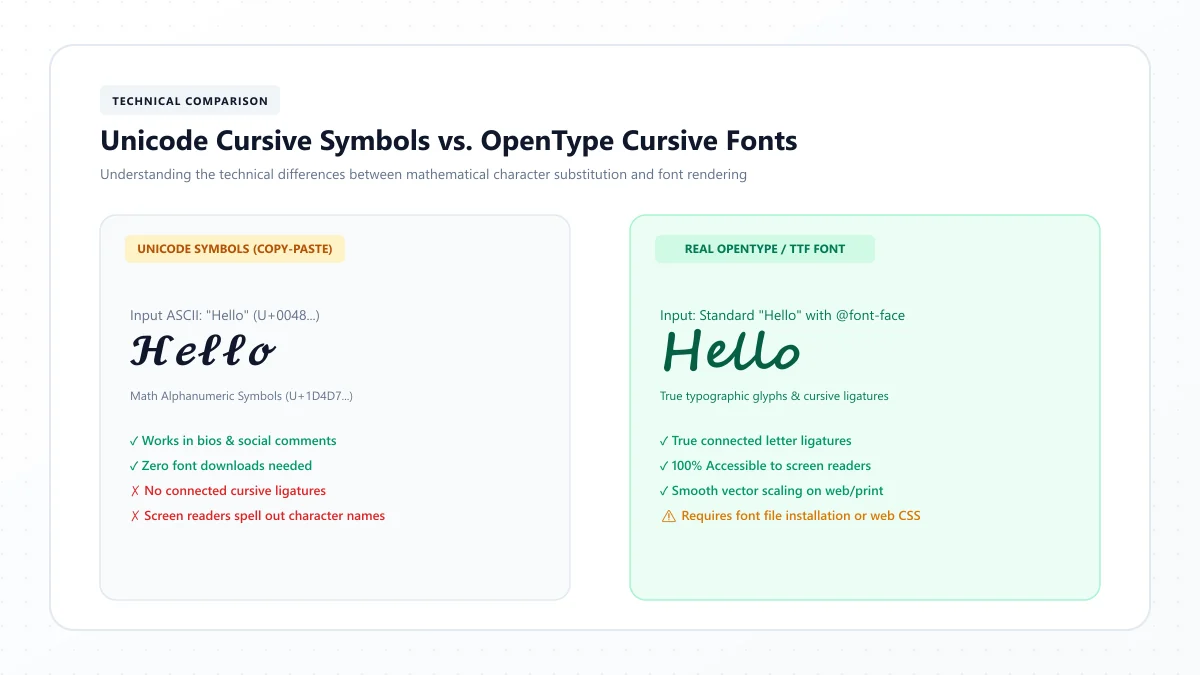
The first is a traditional font file, such as a TrueType or OpenType typeface, that changes the appearance of ordinary letters.
The second is decorative Unicode text, which uses special characters that resemble cursive handwriting.
These methods may look similar, but they work differently.
For example:
Normal text: Hello Beautiful
Unicode cursive: 𝓗𝓮𝓵𝓵𝓸 𝓑𝓮𝓪𝓾𝓽𝓲𝓯𝓾𝓵
The second example uses decorative Unicode characters rather than applying a traditional font to standard letters.
That distinction matters because the solution depends on which method you're using.
A downloaded cursive font might fail because it wasn't installed correctly. Unicode cursive might display incorrectly because an app or device doesn't support the characters.
Other common causes include outdated software, missing font resources, incompatible applications, and clipboard problems.
The following fixes will help you identify what's happening.
Fix 1: Try a Different Cursive Text Style
If you're using an online cursive text generator, the quickest solution is often to try another style.
Different decorative text styles use different Unicode characters.
Your device might support one set of characters while struggling with another.
For example, one style may display perfectly in a browser but appear as blank boxes in a messaging app.
How to Fix It
- Open our free Cursive Text Generator.
- Type a short phrase, such as "Hello World."
- Explore the available cursive styles.
- Copy a style that is clearly readable.
- Paste it into the app where you experienced the problem.
- Check whether all the characters appear correctly.
If the first style doesn't work, try another.
Why This Helps
Unicode includes various characters that can produce decorative lettering effects.
However, displaying a character correctly requires appropriate support from the device's fonts and text-rendering software.
Some styles may therefore work better than others.
Best for: Cursive text showing boxes, missing letters, or unsupported symbols.
If several styles fail in the same app, continue with the next fix.
Fix 2: Check Whether the App Supports Cursive Characters
Sometimes the problem isn't your font or text generator.
It's the application where you're trying to use the text.
Different apps handle Unicode characters, fonts, and profile fields differently.
A decorative name that works in a text message might not be accepted in a username field.
Similarly, a particular character may display correctly in one app but appear differently in another.
How to Fix It
Try this simple test:
- Copy a short cursive phrase.
- Paste it into a basic notes app.
- Check whether the characters appear correctly.
- Copy the same phrase into your target application.
- Compare the results.
If the text works in your notes app but fails in the target application, the issue may involve that app's character restrictions, font support, or text-processing behavior.
What If the App Rejects Your Text?
Try a shorter phrase or a less decorative style.
You can also remove unusual symbols and test the letters separately.
For example, if a profile field rejects an entire decorative name, try entering only a few characters.
This can help you determine whether the problem affects the whole text or just certain symbols.
Important Note
An app rejecting decorative text doesn't necessarily mean the characters are invalid Unicode.
Some services apply additional rules to usernames, profile names, or other fields.
Best for: Fancy fonts not working in Instagram, WhatsApp, TikTok, Discord, and similar applications.
Fix 3: Update Your Browser, App, or Operating System
Older software may have limited support for particular Unicode characters or text-rendering features.
Font support also depends on the resources installed on your device.
Updating your software can sometimes improve compatibility.
However, an update does not guarantee that every decorative character will become available.
How to Fix It on Android
- Open the Google Play Store.
- Check for updates to the affected application.
- Install available updates.
- Open your phone's system settings.
- Check whether a supported system update is available.
- Restart the affected application and test the text again.
The exact steps vary depending on your Android version and device manufacturer.
How to Fix It on iPhone
- Open the App Store.
- Check for updates to the affected application.
- Install available updates.
- Open Settings > General > Software Update.
- Install an appropriate iOS update if one is available.
- Reopen the application and test your cursive text.
How to Fix It on Windows or Mac
Update the browser or application where the problem occurs.
You can also check for supported operating system updates.
If you're using an older browser, try a current version of Chrome, Edge, Firefox, or Safari.
Why Updating May Help
Operating system and application updates can include improvements to text rendering, Unicode handling, and font support.
If the issue comes from outdated software, updating may resolve it.
Best for: Cursive symbols displaying incorrectly on older phones, browsers, or applications.
Fix 4: Check Your Copy-and-Paste Method
If your cursive text looks correct in a generator but disappears or changes when pasted, the clipboard or text-entry process may be involved.
Sometimes a copy operation doesn't complete successfully.
In other situations, an application may modify pasted content or reject certain characters.
The easiest way to investigate is to test each step separately.
How to Fix It
Step 1: Return to the text generator.
Step 2: Enter a short word, such as "Dream."
Step 3: Copy your chosen cursive version again.
Step 4: Open a basic notes application.
Step 5: Paste the text.
Step 6: Check whether the complete phrase appears.
Step 7: Copy it from the notes app and paste it into your intended destination.
If the text works in both places, the original problem may have been a temporary copying issue.
If it fails only in the target application, investigate that application's text support or input restrictions.
Keyboard Shortcuts That May Help
On Windows:
- Ctrl + C: Copy
- Ctrl + V: Paste
On Mac:
- Command + C: Copy
- Command + V: Paste
On mobile devices, you can usually tap and hold a text field to access paste controls.
What If Nothing Pastes?
Try copying an ordinary word first.
If standard text also fails, the issue is probably not specific to cursive characters.
Check whether the application allows pasting into that field and whether your clipboard is functioning normally.
Best for: Cursive copy-and-paste not working in text fields, documents, and messaging applications.
Fix 5: Reinstall the Font If You're Using Microsoft Word
If you're working with a downloaded cursive font in Microsoft Word, the solution may be different.
Traditional fonts must be available to the operating system and application.
Simply downloading a font file doesn't always make it ready to use.
For example, you might download a script font, open Word, and discover that it isn't listed in the font menu.
This usually requires checking the installation rather than changing Unicode characters.
How to Fix It on Windows
- Close Microsoft Word.
- Locate the downloaded font file.
- Extract the files if they are inside a ZIP archive.
- Find the .ttf or .otf font file.
- Double-click it to open the font preview.
- Click Install if the font isn't already installed.
- Reopen Microsoft Word.
- Search for the font by its actual family name.
You can also review installed fonts through Windows Settings.
Only download font files from sources you trust.
How to Fix It on Mac
- Close Microsoft Word.
- Open the downloaded font file.
- Use Font Book to install or validate it.
- Check for duplicate or disabled fonts.
- Reopen Word.
- Search for the font again.
What If the Font Still Doesn't Appear?
Check whether you're using the desktop version of Word or Word for the web.
Browser-based document editors don't always support locally installed fonts in the same way as desktop applications.
Also verify that the font file isn't damaged and that the typeface supports the letters you're trying to use.
For additional font recommendations, read our guide to 15 Best Cursive Fonts in Microsoft Word.
Best for: Downloaded handwriting fonts missing from Word or other desktop applications.
Fix 6: Fix Missing Letters, Empty Boxes, and Strange Symbols
One of the most noticeable cursive font problems occurs when certain characters appear as squares, question marks, or unusual replacement symbols.
This often happens when the available fonts don't include the required glyphs.
A glyph is the visible shape a font uses to represent a character.
If an application cannot find a suitable glyph, it may display a placeholder instead.
For example:
Expected text: 𝓗𝓮𝓵𝓵𝓸
Possible problem: A series of empty square boxes instead of the letters.
Unicode refers to such placeholders as missing-glyph indicators, sometimes informally called tofu.
How to Fix It
First, determine whether the issue affects every character or only a few.
Copy a short decorative phrase and test it in another application.
If the characters display correctly elsewhere, the original application may lack appropriate font or rendering support.
If they fail across multiple applications, your device may not have suitable font coverage.
Try these solutions:
- Use a simpler decorative text style.
- Update your operating system and affected application.
- Test the same text in another browser.
- Use a compatible font that supports the necessary characters, where the application allows font selection.
- Replace unsupported decorative characters with ordinary letters.
Should You Download a Unicode Font?
Sometimes installing a suitable font can help on desktop systems.
However, not every application lets you control which font renders its text.
Installing a random font will not necessarily fix missing characters in mobile apps or online profile fields.
Avoid downloading unfamiliar font packages that promise universal compatibility.
Why This Problem Happens
Unicode defines characters, but it doesn't guarantee that every device includes a font capable of displaying every character.
The actual appearance depends on several things working together, including font coverage, application support, and the operating system's text-rendering system.
You can explore the technical explanation in Unicode's official guide to display problems.
Best for: Cursive letters showing as boxes, question marks, blank spaces, or replacement symbols.
Fix 7: Use a Compatible Font or Export Your Design Properly
Sometimes cursive text looks perfect while you're editing a document but changes when you share it.
This is particularly common with traditional fonts.
For example, you might create a certificate using a downloaded script font on your computer.
When someone opens the editable document on another device, the original typeface may be unavailable.
The receiving application can substitute a different font, changing the design.
How to Fix It for Microsoft Word
If your document needs to preserve its appearance, consider exporting it as a PDF.
- Open the completed document in Word.
- Select File.
- Choose the available Save As or Export option.
- Select PDF as the output format.
- Save the document.
- Open the exported PDF and review the lettering.
This is often more reliable for invitations, certificates, and printable designs.
PDF export generally preserves the intended layout, although you should verify the actual result.
How to Fix It for Google Docs
If you're creating a document in Google Docs, use one of the typefaces supported by its font library.
For a finished design, download a PDF copy and inspect it before sharing.
Our guide to using cursive fonts in Google Docs explains how to find and apply handwriting-style fonts.
What About Social Media?
Social media platforms do not generally let you upload arbitrary fonts for normal profile text.
For short captions or bios, Unicode decorative characters may be convenient, provided the platform accepts and correctly displays them.
If a particular style consistently fails, choose another rather than relying on an unsupported character set.
Best for: Cursive fonts changing after sharing documents, exporting files, or moving text between applications.
Quick Troubleshooting Table: Find the Right Fix
Not sure which solution applies to your problem?
Use this table to identify where to start.
| Problem | Possible Cause | Recommended Fix |
|---|---|---|
| Cursive text shows boxes | Missing character support | Try Fix 1 or Fix 6 |
| Fancy fonts don't work in an app | App restrictions or compatibility | Try Fix 2 |
| Cursive text fails on an older phone | Outdated software or font support | Try Fix 3 |
| Cursive won't copy or paste | Clipboard or field restrictions | Try Fix 4 |
| Downloaded font missing in Word | Installation problem | Try Fix 5 |
| Certain letters disappear | Unsupported glyphs | Try Fix 6 |
| Font changes when sharing documents | Font substitution | Try Fix 7 |
You don't need to try every solution.
Start with the fix that best matches what you're experiencing.
Why Cursive Text Works on One Device but Not Another
Two people can receive the same decorative text and see slightly different results.
This happens because devices don't necessarily use the same fonts or text-rendering systems.
For example, an Android phone might display a particular Unicode character using one font, while an iPhone uses a different font.
The characters remain the same, but their visible shapes can vary.
In some cases, one device may lack a suitable glyph entirely.
Several factors influence how text appears:
- Operating system and version
- Available fonts
- Application support
- Browser rendering
- Unicode character coverage
- Text processing and formatting rules
This explains why a decorative style that looks excellent in a generator preview may not appear identically everywhere.
The safest approach is to test important text on the devices and applications where it will be used.
For essential information, ordinary letters are generally the most dependable choice.
Unicode Cursive vs. Traditional Cursive Fonts: Why It Matters
Understanding this difference can save you considerable troubleshooting time.
Traditional Cursive Fonts
Traditional fonts change the appearance of ordinary text.
For example, the letters in "Hello" remain standard alphabetic characters even when you apply a handwriting font.
The font determines how those letters look.
Examples include Segoe Script, Great Vibes, and Dancing Script.
Traditional fonts are especially useful for documents, invitations, presentations, and printable projects.
Unicode Cursive Text
Unicode cursive uses special characters that resemble stylized handwriting.
For example:
Ordinary letters: Hello
Decorative characters: 𝓗𝓮𝓵𝓵𝓸
These are not simply the same ordinary characters displayed in a different font.
They are different Unicode characters.
That makes them convenient for copying between applications, but it can also create compatibility, searching, and accessibility limitations.
Which One Should You Use?
Choose a traditional cursive font when you need:
- A professionally formatted document
- Consistent typography in an editable design
- Better control over spacing and layout
- Long passages of readable text
- More predictable printing
Choose decorative Unicode text when you want:
- A short stylized name
- A decorative social media phrase
- A casual message
- A short heading in a compatible text field
- Copy-and-paste lettering without installing fonts
For a more detailed explanation, visit our article on Unicode cursive vs. real cursive fonts.
How to Fix Cursive Font Problems on Instagram
Instagram users often encounter decorative text issues when customizing bios, captions, or profile names.
If your cursive text looks strange or isn't accepted, start by testing a short phrase.
What to Try
- Open the Cursive Text Generator.
- Enter a short name or phrase.
- Choose a simple, readable style.
- Copy the text.
- Paste it into the relevant Instagram field.
- Check that every character displays correctly.
- Save the change if Instagram accepts it.
If the platform rejects the text, remove additional symbols and try another style.
Keep in mind that display names, usernames, bios, and captions can have different restrictions.
A decorative phrase that works in a bio may not be valid as a username.
For more ideas, read our guide to getting cursive fonts on Instagram.
How to Fix Cursive Font Problems on WhatsApp
WhatsApp users sometimes notice that decorative lettering displays differently across devices.
The first thing to remember is that WhatsApp's built-in italic formatting is not the same as traditional cursive handwriting.
For flowing cursive-style characters, a Unicode generator provides an alternative.
If the copied characters don't display properly:
- Try another decorative style.
- Test the phrase in your phone's notes app.
- Update WhatsApp if an update is available.
- Remove unsupported symbols.
- Try sending a short sample message.
If you're trying to use cursive text in a profile name or About section, keep the phrase short and check whether the field accepts those characters.
Our guide to writing in cursive on WhatsApp covers the complete copy-and-paste process.
How to Fix Cursive Font Problems in Google Docs
Google Docs can use handwriting and script fonts from its supported font collection.
However, it doesn't work exactly like a desktop application that allows arbitrary custom fonts to be installed.
If the font you want isn't available:
- Open your document.
- Select the text you want to change.
- Open the font dropdown.
- Choose More fonts, if available.
- Search for a suitable script font.
- Add and apply the font.
If you're pasting Unicode cursive characters and some appear as boxes, try an alternative style or switch to ordinary text with a supported handwriting font.
For documents intended to be shared or printed, review the exported PDF to confirm that the lettering appears correctly.
How to Prevent Cursive Font Problems in the Future
Once you've fixed the issue, a few simple habits can help you avoid similar problems.
Choose Readable Text Styles
The most decorative option isn't always the most practical.
Simple lettering is often easier to recognize and more likely to display consistently.
Test Before Publishing
If you're updating an important profile, creating a public post, or preparing a printable design, preview the text first.
Check for missing symbols, unexpected spacing, or unusual character substitutions.
Keep Your Software Updated
Current applications and operating systems may offer improved font and Unicode support.
Install appropriate updates when available.
Download Fonts from Trusted Sources
Avoid unfamiliar font packages, especially those distributed through suspicious websites or unexpected installers.
A font should not require you to disable security protections or share account credentials.
Keep Important Information in Standard Text
Decorative characters can be difficult for screen readers, search functions, and some automated systems to interpret.
Avoid using them for essential instructions, addresses, passwords, and other information where accuracy matters.
Save Important Designs in a Suitable Format
For finished invitations, certificates, and other visual documents, a carefully checked PDF can help preserve the intended appearance.
Frequently Asked Questions
Why is my cursive font not working?
The problem may involve unsupported Unicode characters, an incompatible application, missing fonts, outdated software, or a clipboard issue. The correct fix depends on whether you're using decorative Unicode text or a traditional installed font.
Why does my cursive text show boxes instead of letters?
Boxes often appear when the available fonts cannot display particular Unicode characters. Try a different cursive style, update the relevant software, or use ordinary text with a compatible script font.
How do I fix cursive copy-and-paste problems?
Copy a short phrase again and paste it into a basic notes application. If it works there but fails in another app, the receiving application may have character restrictions or compatibility limitations.
Why is my cursive font not showing in Microsoft Word?
The font may not have been installed correctly, Word may need to be reopened, or the font may not be supported by your version of the application. Confirm the font is installed on your operating system and search for its correct name.
Why does fancy text work on my phone but not on someone else's?
Different devices can use different fonts and rendering software. One device may support a decorative Unicode character that another cannot display properly.
Can I use cursive fonts in Instagram and WhatsApp?
You can often use compatible Unicode decorative characters in messages, captions, bios, and certain profile fields. However, individual platforms may impose restrictions, and the text may not display identically on every device.
Does updating my phone fix missing cursive letters?
It can help if the issue involves outdated software or missing font support that the update addresses. However, an update won't necessarily make every Unicode character display correctly.
Can I install a font to fix missing cursive characters?
In some desktop applications, installing a suitable font may solve missing-glyph problems. However, mobile applications and social platforms may not use the installed font, so the result isn't guaranteed.
Why does my cursive font change when I save a document?
If the document uses a font unavailable on another device or application, a substitute font may be used. Exporting a finished document as a PDF and checking the output can help preserve the design.
What is the easiest way to create cursive text that works?
For short decorative phrases, start with a clear style from our Cursive Text Generator and test it in the intended application. For professional documents, use a compatible traditional script font.
Final Thoughts
When a cursive font stops working, the problem isn't always complicated.
Sometimes you simply need to choose another lettering style. In other cases, the issue comes from unsupported characters, an incorrectly installed font, outdated software, or differences between applications.
The most important step is identifying whether you're working with a conventional font or Unicode decorative text.
Once you understand that difference, troubleshooting becomes much easier.
Start by testing a short phrase, checking the app where the issue occurs, and using the relevant fix from this guide.
If you want to explore attractive, copy-and-paste lettering styles, visit our free Cursive Text Generator.
Choose a style you like, test it in your favorite application, and enjoy decorative text that looks as close as possible to the way you intended.